


Skin Selection  


  • Make a preliminary selection with the Lasso Tool ;
  • Use the Color Range command to expand the selection ;
  • To avoid mistakes you could choose a Selection Preview to enable you to see exactly what color range has been selected
  • Color Range -> Selection Preview -> Whit Matte , Grayscale and other
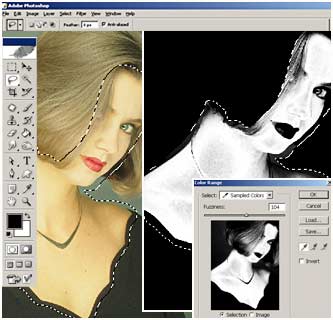
  • Soften the edge of a selection using the Feather command
  • Create layer from selected features.
  •    
         
    *****************************************************************************************    
    Skin Color Correction  


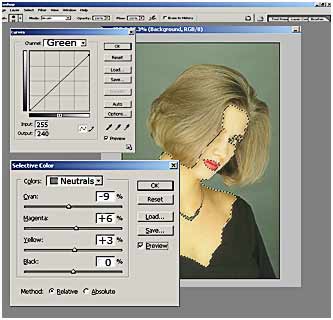
    • To adjust the color balance use the Curves (Ctrl + M )

             Chanal : " Green"
             Input :     255
             Output :  240

    • Use the Selective Color tool to correct color in shadow
    • Image -> Adjustment -> Selective Color -> Choose Neutrals c

             Color : " Neutrals"
             Cyan :       -9%  
             Magenta : +6%
             Yellow:     +3%
             Black:        0



    ************************************************************************************
    Change Eyes Color


    • In layer palette, click on background

    • Use the Lasso Tool to select Eyes area
    • Create layer from selected (Cntl-J)
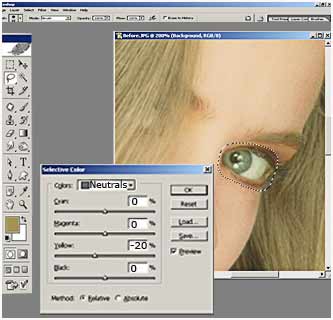
    • Use the Selective Color tool to correct eyes color
    • Image -> Adjustment -> Selective Color -> Choose Neutrals color

        Color : " Neutrals"
        Cyan :      0%  
        Magenta:  0%
        Yellow:   - 20%
         Black:      0 %
    • Choose Flatten Image from the Layers palette menu


    ****************************************************************************************

    Adjusting the colors of the whole image
     
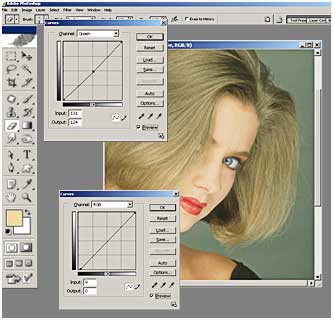
    • To adjust the color balance use the Curves (Ctrl + M )

             Chanal : " Green"
             Input :     131
             Output :  134

             Chanal : " RGB "
             Input :    9
             Output :  0

     
    *******************************************************************************************


    ©2000-2014 Digital Art Gallery